Get the UnyKorn Wallet
Your keys stay on your phone. Send and receive USDC on Base, bill people, pay x402 websites. No account and no password to register.
Install on Android
Download the Android app (APK)
Version 1.0.0 · 1.4 MB · SHA-256245de522b98a84f57f45e1203fee0ff0379a05c07b476819a7e4105dc73a018c
- Tap the button. When your phone asks, allow installs from this browser (Settings → Install unknown apps). You can switch that off again afterwards.
- Open the downloaded file and tap Install.
- Open UnyKorn Wallet. It creates your wallet on the phone and asks you to set a passcode.
Android may show a notice that the app did not come from the Play Store. That is expected for a direct install. To check the download, compare its SHA-256 with the line above.
Open in your browser
No download needed. Open the wallet in Chrome (Android) or Safari (iPhone), then add it to your home screen. Android: ⋮ → Install app. iPhone: Share → Add to Home Screen.
Send this page to a phone
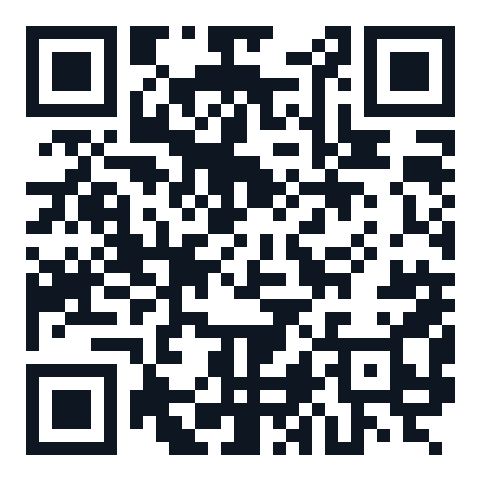
Scan with the phone camera. It opens wallet.unykorn.org/get.
On your computer (Chrome, Edge or Brave)
- Download the extension
- Unzip it. On Windows: right-click the file → Extract All.
- Go to
chrome://extensions(Edge:edge://extensions) and turn on Developer mode (top right). - Click Load unpacked and pick the unzipped folder, then pin UnyKorn Wallet in the toolbar.
The extension keeps its own wallet inside your browser. To use the same wallet as your phone, open the extension's Vault and choose Restore with your phone wallet's recovery phrase.
Using it
- Get paid: say or type "bill Buck 20 dollars for lunch" or "request 5 dollars". You get a link and a QR code to share.
- Pay: scan someone's QR code or tap their link, then tap Approve. Nothing moves until you approve.
- Send: "send Bradley 5 dollars", then Confirm.
- Balance: "what's my balance". Every payment shows a link to see it on Base.
Add money from Coinbase
- In your UnyKorn wallet, tap Receive. It shows your QR code and address.
- In the Coinbase app: Send → USDC, then scan that QR (or paste the address).
- Choose the network "Base". Another network means the money will not show up.
- Send $1 first as a test. Once it shows in your wallet, send the rest.
Questions? [email protected] · Privacy policy
UnyKorn LLC · 5655 Peachtree Pkwy, Norcross, GA 30092 · [email protected] · +1 470-600-7111 · UnyKorn Desk 866-869-5676